Chapter 1
First Launch and First Sound
Launch KQ AU Host and play the app’s built-in instrument on the on-screen keyboard. It takes about five minutes.
In this chapter
- Start a new session
- Choose where the sound goes out (speakers or headphones)
- Load an instrument into a track and play it on the on-screen keyboard or the computer keyboard
What you need
- A Mac, iPhone or iPad with KQ AU Host installed
- Speakers or headphones
1. Start a new session
In KQ AU Host, the state of the mixer, the plug-ins loaded and the MIDI connections together are called a session. You start a new session from the welcome screen.
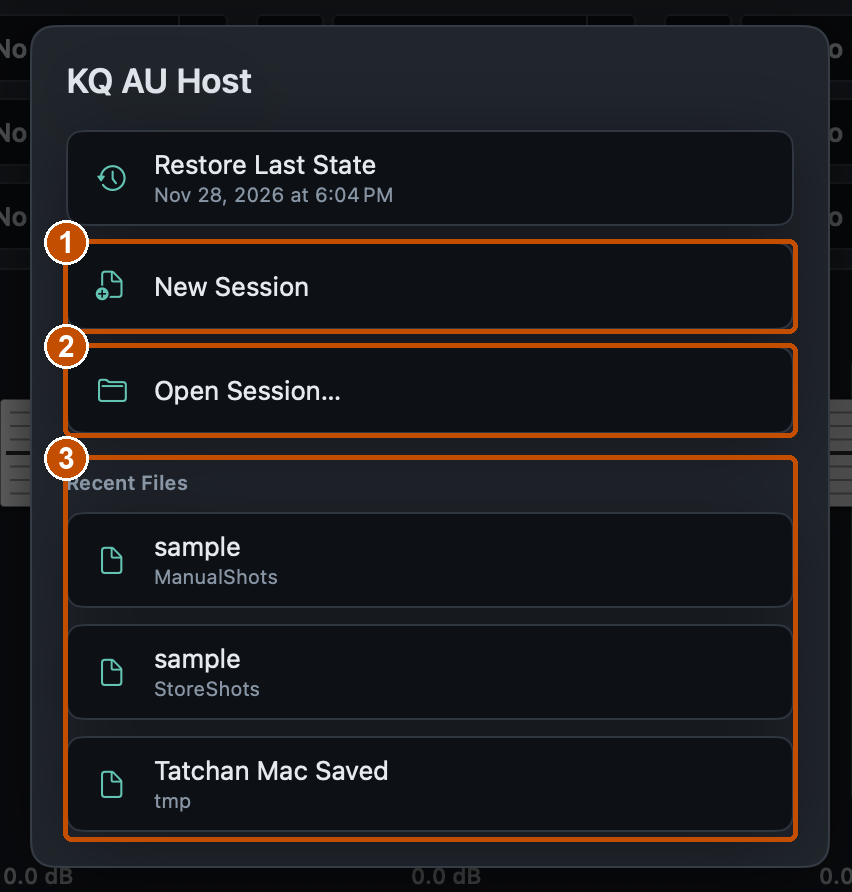
- New Session
- Open Session…
- The list of Recent Files
- Launch KQ AU Host. The welcome screen appears.
- Mac
- The welcome screen appears only at the first launch. After that, the app starts where you left off. To open it later, choose File > Welcome Screen… in the menu bar.
- iPhone and iPad
- It appears at every launch. To open it later, choose Welcome Screen… from the … menu in the top bar.
- Choose New Session 1. An empty mixer appears.
2. Choose where the sound goes out
Choose the speakers or headphones to play the sound.
Press the output name on the Master strip, at the left end of the mixer, and choose.
- Mac
- Choose from the output devices connected. You can also choose in Output Device 1 under Audio in KQ AU Host > Settings… (⌘,).
- iPhone and iPad
- Choose from the speaker, headphones, AirPlay and Bluetooth.
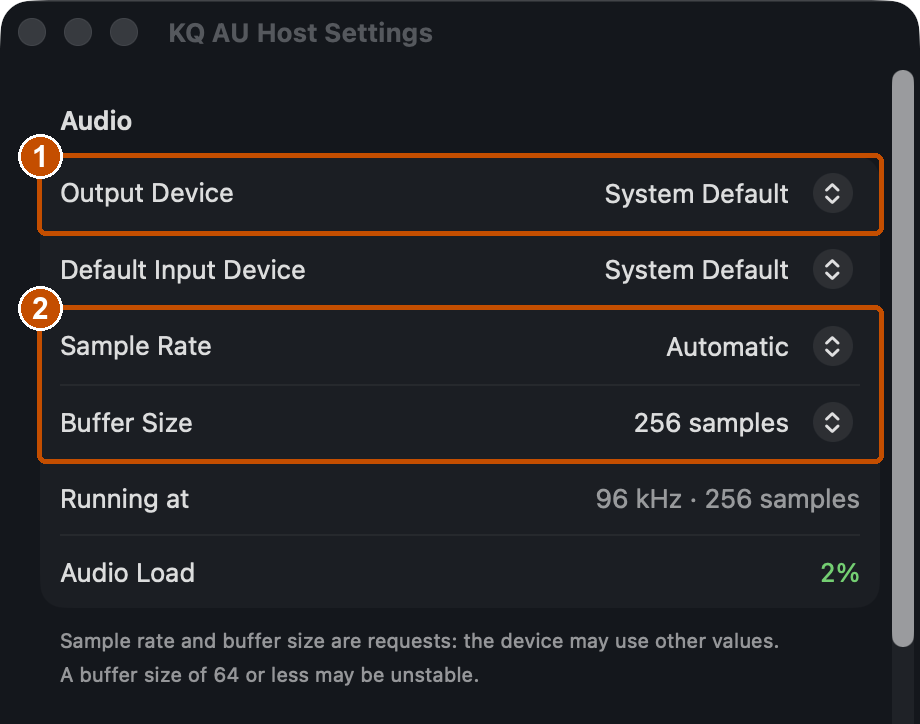
- Output Device
- Sample Rate and Buffer Size
3. Load an instrument into a track
The mixer shows tracks named from A. The top slot of a track is the instrument slot, where an instrument plug-in goes.
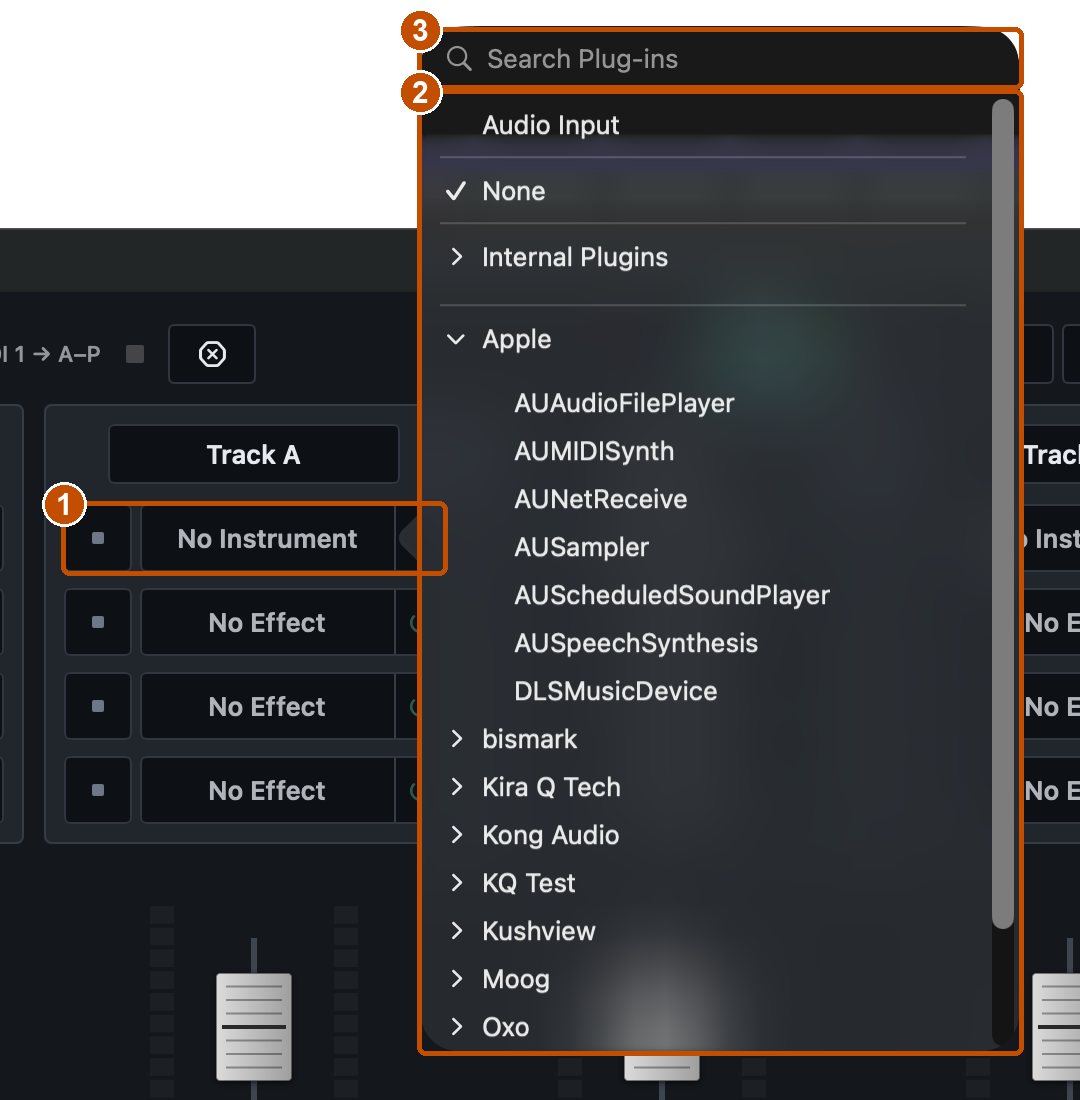
- Track A’s instrument slot
- The plug-in menu
- The search field (Search Plug-ins)
- Click track A’s instrument slot 1 (tap it on iPhone and iPad). The plug-in menu 2 appears.
- Choose an instrument under Apple in the menu. Typing its name in the search field 3 finds it quickly. In this example, choose this instrument:
- Mac
- DLSMusicDevice. It has the General MIDI (GM) sounds and plays right away.
- iPhone and iPad
- AUMIDISynth. With nothing loaded it plays a plain sine-wave “beep”. For the GM sounds, choose a GM SoundFont (.sf2 and so on) with Choose Sound… in AUMIDISynth’s view.
- When the instrument’s name appears in the slot, it is loaded.
4. Play on the on-screen keyboard
Open the keyboard window and play the instrument. In a new session, the keyboard and every MIDI device connected reach all the tracks (through MIDI lane 1).
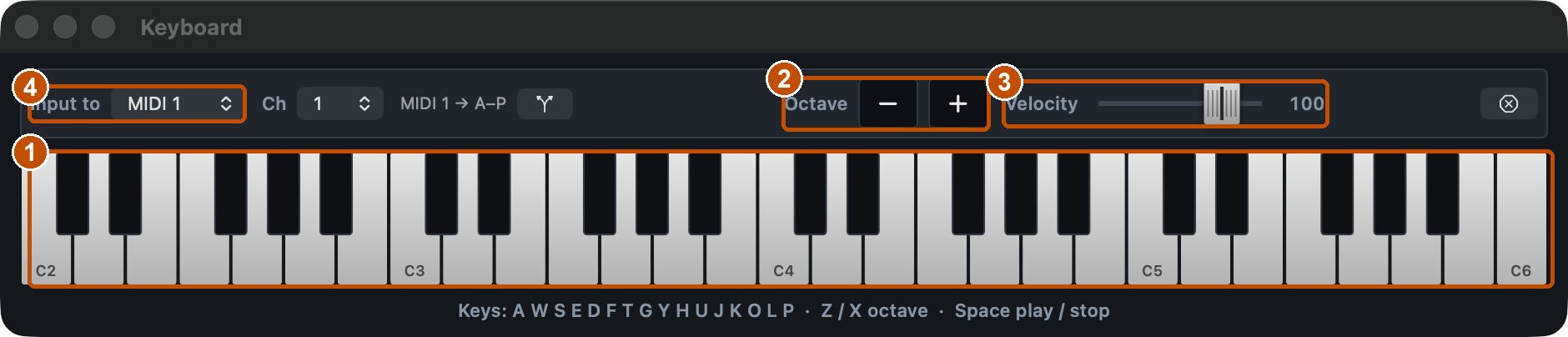
- Keys
- Octave
- Velocity
- The MIDI lane it plays into
- Open the keyboard window: click (tap) the Keyboard button below the Master strip. On the Mac, ⌘K also opens it.
- Click (tap) the keys 1 to play.
- To change the pitch, change the Octave 2. To play louder or softer, change the Velocity 3.
Playing with the computer keyboard Mac only
While the app’s window is in front, you can play with the computer keyboard.
- White keys: A S D F G H J K L ;
- Black keys: W E T Y U O P
- Octave down / up: Z / X
When a plug-in’s view is in front, the keys go to the plug-in.
5. Set the volume
Track A’s fader sets the instrument’s volume, and the Master fader sets the overall volume. If a meter turns red, the sound is clipping: turn it down.
To move a fader or knob finely, drag and move your finger (the pointer) sideways away from it. Touch and hold it (or right-click on the Mac) to type a value.
- If the top bar shows Audio stopped, press it to restart the audio.
- Check that the Master output is not muted and that the right output device is chosen.
- If the keyboard window says The keyboard is not heard. Check the lane in MIDI Routing., the lane the keyboard plays into is not connected to any track.
MoreReference Chapter 1 The Screen, Chapter 2 Plug-ins, Chapter 3 The Mixer
Read next
Chapter 2 shows how to save the session you made and open it again later.