Chapter 3
Playing Instruments from a MIDI Keyboard
Connect a MIDI keyboard and play the instruments loaded into tracks. Then come examples of layering two instruments and of splitting the keyboard.
In this chapter
- Play instruments from a MIDI keyboard
- Choose which instruments the notes go to, with MIDI lanes
- Layer instruments and split the keyboard
What you need
- A MIDI keyboard (USB or Bluetooth)
- The session with the instrument loaded in Chapter 1
What MIDI lanes are
In KQ AU Host, MIDI reaches the tracks through lanes. Each lane has these parts, from top to bottom:
- MIDI Input: where the MIDI comes from (MIDI keyboards, a MIDI file and so on)
- The channel filter: which of the 16 MIDI channels pass
- MIDI Effects: MIDI effects such as arpeggiators (optional)
- Output: which tracks it goes to
There are 20 lanes. In a new session, lane 1 (MIDI 1) takes every MIDI device connected and the MIDI file, and sends them to every track. Lanes 2 to 20 are empty.
1. Connect the MIDI keyboard
- USB
- Connect it to the Mac, iPhone or iPad with a cable.
- Bluetooth
-
Mac: connect it in macOS’s Audio MIDI Setup app.
iPhone and iPad: choose Connect to… from the Bluetooth button in the title bar of the MIDI Routing window.
In a new session, it plays as soon as it is connected. Play the instrument you loaded in Chapter 1 from the MIDI keyboard.
2. Open the MIDI Routing window
Which keyboard plays which tracks is set in the MIDI Routing window. Press the MIDI Routing button in the top bar to open it (on the Mac, ⇧⌘R also opens it).
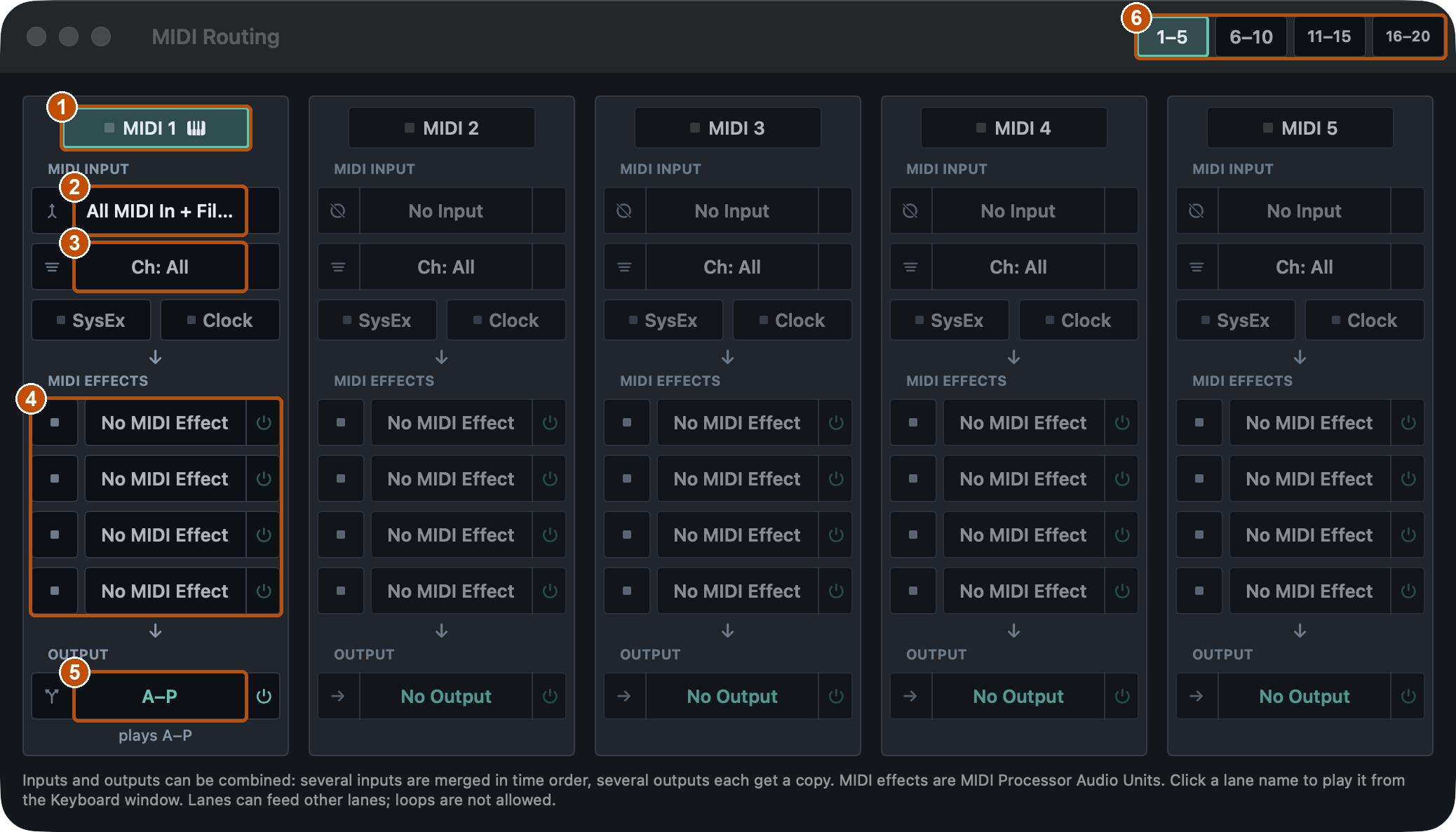
- The lane’s name (MIDI 1) and its light, which lights when MIDI arrives
- The MIDI Input box
- The channel filter (Ch:)
- The MIDI Effects slots
- The Output box
- The lanes shown (1–5, 6–10 …)
- Play the MIDI keyboard and check that the light 1 next to the lane’s name lights.
- Press lane 1’s MIDI Input box 2 to see what it can take. The ones with a check mark are taken.
- Press the Output box 5 to see the tracks it can send to.
Example 1: Play one track only
The examples from here use Apple’s instruments. Load the instrument from Chapter 1 into track A (DLSMusicDevice on the Mac, AUMIDISynth on iPhone and iPad), and AUSampler into track B (all under Apple in the plug-in menu; with nothing loaded, AUSampler plays a sine wave). As a new session is set up, the keyboard plays both. Let’s make it play track A only.
- Press lane 1’s Output box.
- Choose Clear All Outputs, then press the box again and choose track A.
- plays A appears under the Output box. The keyboard now plays track A only.
Example 2: Layer two instruments
Two instruments playing together give a fuller sound.
- Press lane 1’s Output box and check both tracks A and B.
- The keyboard now plays A and B together. Balance them with each track’s fader.
Example 3: Split the keyboard
An example for playing different sounds with the left and right hands. It uses two lanes, each sending to a different track.
With two keyboards
- Press lane 1’s MIDI Input box, uncheck All MIDI In and check the first keyboard only. Set Output to track A.
- In lane 2’s MIDI Input, choose the second keyboard, and set Output to track B.
One keyboard, split by channel
For a keyboard that can send its left and right halves on different MIDI channels (a split). Say the left half is on channel 1 and the right half on channel 2.
- Press lane 1’s channel filter (Ch:) and check Channel 1 only. Set Output to track A.
- In lane 2’s MIDI Input, choose the same keyboard. Set its channel filter to Channel 2 only, and Output to track B.
- The left half plays track A, and the right half plays track B.
- If the lane’s light does not light when you play, the MIDI keyboard is not connected, or it is not chosen in MIDI Input.
- If the light lights but nothing plays, check that the channel filter lets the keyboard’s channel through, and that Output has a track with an instrument. When Output’s power button is off, the lane sends nothing.
- A lane with no input is shown a little dimmer.
MoreReference Chapter 4 MIDI
Read next
Chapter 4 shows how to bring a microphone, a guitar or the like into a track and put effects on it.