Chapter 7
Playing to the Metronome
Play the app’s built-in metronome to keep time when practicing or recording.
In this chapter
- Load the metronome and play it
- Choose the tempo, the meter and the note it clicks on
- Add a count-in
- Keep the metronome out of a recording (record a track that gathers the others)
What you need
- A session that plays, as in Chapter 1
1. Load the metronome
The metronome goes into a track as an instrument. On a track of its own, its volume can be set apart from the other instruments.
- Press the instrument slot of a free track (for example track D).
- Open Internal Plugins at the top of the menu and choose Metronome.
- Press the name Metronome in the slot to open the metronome’s view.
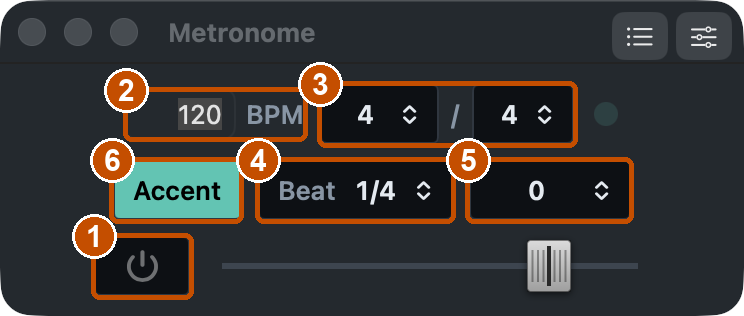
- The sound button
- BPM
- The meter
- Beat
- Count-In
- Accent
2. Play it
- Choose the tempo with BPM 2, and 4/4, 3/4 or the like with the meter 3. These change the tempo and meter of the whole app (the same BPM as in the top bar).
- Press the sound button 1. It starts at the next downbeat. Right after loading, it is silent.
- To click eighth notes and the like, choose the note with Beat 4. To stress the downbeat, turn on Accent 6.
- Set its volume with the fader of the metronome’s track.
The metronome keeps clicking at the app’s tempo even when nothing is playing. Press the sound button again to stop it.
3. Add a count-in
Have it count a few bars before you start playing.
- Choose the number of bars with Count-In 5.
- Press the sound button: it counts the count-in bars and goes on clicking.
- The choices marked “only” click the count-in bars and stop. Use them when you want just a cue at the start.
The count-in can also be chosen in Count-In under Meter in Settings.
4. With a MIDI file
- While a MIDI file plays, the metronome follows its bars.
- When a MIDI file opens, the tempo and meter become the file’s. When the meter changes in the file, the metronome changes with it.
- Lowering the BPM slows the MIDI file and the metronome together, which is handy for practicing.
5. Keep the metronome out of a recording
Recording Master records the metronome too. To hear the metronome but record only your playing, gather the other tracks into one track and record only that track.
Here, say you play on tracks A to C, and the metronome is in track D. Track E gathers the others.
- Press track E’s instrument slot and choose Audio Input.
- Press the input’s name in the slot to open the input menu. No microphone is wanted, so turn the input device off (Mac: None under Input Device; iPhone and iPad: press the device name at the top to turn it off).
- Under Tracks in the same menu, check A, B and C, but not the metronome’s D. The sound of A to C now goes through track E instead of straight to Master.
- Turn off Master’s record button (●) and press only track E’s ●.
- Record with Rec. You hear the metronome, but only track E (your playing on A to C) is recorded.
Track E’s fader sets the volume of A to C together. An effect in track E works on A to C together.
MoreReference Chapter 5 Playback, Chapter 6 Recording
Read next
This is the end of Getting Started. Every button and setting is explained in Part 2, “Reference”.