Reference Chapter 8
Sessions
Sessions, which save the whole state of the app, and the welcome screen.
What a session holds
- Every plug-in loaded, with all its settings
- The mixer (volume, pan, mute, record buttons, inputs and connections)
- The MIDI lanes
- The contents of the MIDI file open (it opens without the original file, and plays from the start)
- Snapshots
- The open windows (keyboard, MIDI File, MIDI Routing, Snapshot Pad and plug-in views), their positions, and whether a plug-in shows its view or its parameter list
The session file’s extension is .sauhost.
The session menu
The File menu on the Mac; the … menu in the top bar on iPhone and iPad.
| Item | What it does |
|---|---|
| Welcome Screen… | Opens the welcome screen (below). |
| New Session (⌘N) | Empties the session, closing the app’s windows, the plug-in views and the MIDI file. |
| Open Session… (⌘O) | Opens a saved session. |
| Open Recent Mac only | Sessions recently opened or saved. |
| Save Session As… (⌘S) | Saves under a name. |
- The file of a session you opened is never overwritten: each save asks for a name.
- Mac: double-click in the Finder, or drag onto the mixer window or the Dock icon, to open.
- iPhone and iPad: open from the Files app, or drag onto the app.
Autosave of the current state
The current state is kept automatically every 30 seconds. The next launch can start from it (Restore Last State).
The welcome screen
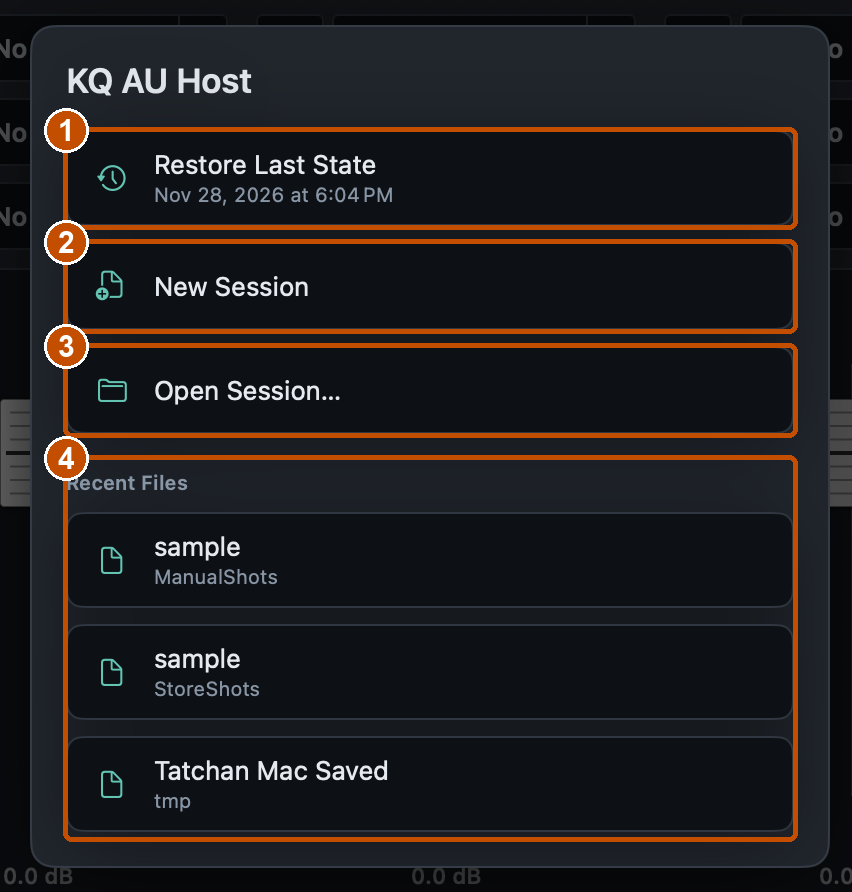
- Restore Last State
- New Session
- Open Session…
- Recent Files (up to five)
- Recent Files are the sessions opened or saved. Their places are remembered, so choosing one opens it. To take one off the list, choose Remove from Recent Files.
- At launch, the last state is not overwritten until you choose one of them. While the welcome screen is up, no other window opens.
- Mac
- It appears only at the first launch; after that the app starts where you left off. To show it at every launch, turn on Show Welcome Screen at Launch in Settings. When you open it later, Cancel (esc) returns to the session you had.
- iPhone and iPad
- It appears at every launch. Opened from the … menu, Cancel goes back.
When the app is launched by opening a session from the Finder or the Files app, the welcome screen does not appear.
Opening on another device
- Session files open on both the Mac and iPhone and iPad.
- When a plug-in of the session is not installed on the device, its slot shows that it cannot be used. Its settings are kept: install the plug-in and load it again to bring it back (These Audio Units are not installed).
- The Mac’s AUv2 plug-ins cannot be used on iPhone and iPad.
- A session saved by a newer version of the app may not open in an older one (This session was saved by a newer version of the app).
Sessions in the free version Mac only
Sessions made with the App Store version that use tracks other than A to D can be opened and used in the free version, but not saved.