Reference Chapter 5
Playback
Playing MIDI files, tempo and meter, and the metronome.
The MIDI File window
Open it with MIDI File below Master, or ⇧⌘M.
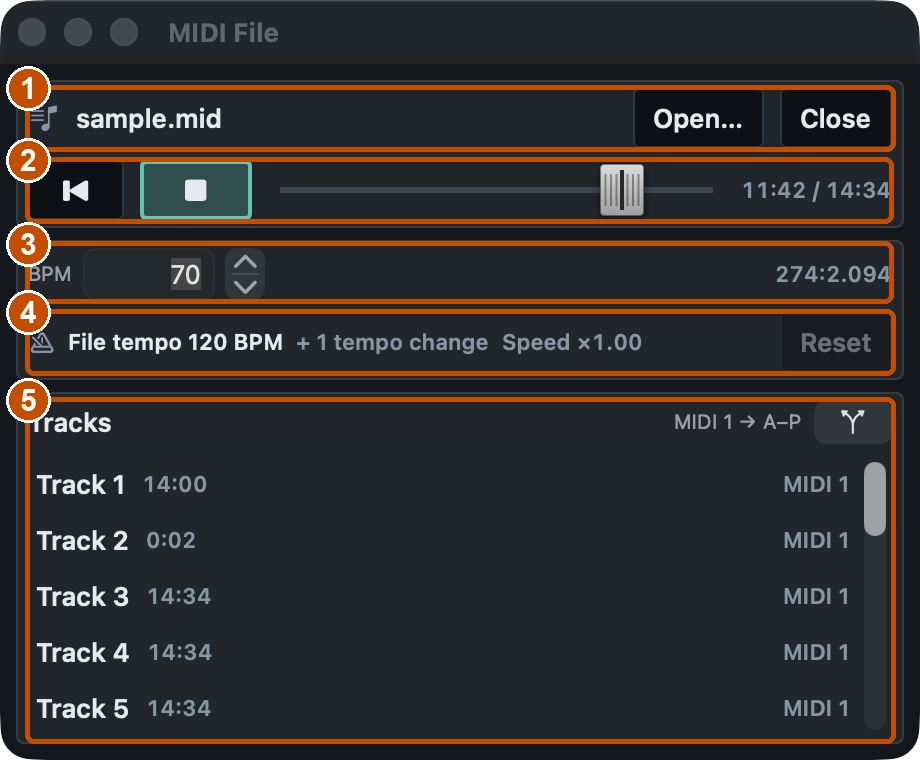
- The file’s name, Open… and Close
- Back to start, play/stop, position and time
- BPM and the bar and beat position
- The file’s tempo and the playback speed
- Tracks (the file’s tracks and the lanes they go to)
| Part | What it does |
|---|---|
| Open…, Close | Open and close a Standard MIDI File (.mid). |
| Back to start | Goes back to the start of the song (⌘←). |
| Play, stop | Starts and stops playback (Space, ⌘↩). |
| Position | Drag it to move anywhere in the song. |
| BPM | The tempo (see “Tempo” below). |
| Bar and beat position | The current position in bars, beats and ticks. |
| File tempo | The file’s tempo, with the number of tempo changes if there are any. |
| Speed × | The current playback speed against the file’s tempo. Reset goes back to the file’s speed. |
| Tracks | The file’s tracks, each with its length and the lanes it goes to. A track that goes to no lane shows Not played. |
Ways to open a MIDI file
- Open… in the MIDI File window. Also File > Open MIDI File… (⇧⌘O) on the Mac, and in the … menu on iPhone and iPad.
- Drag the file onto the mixer window or the MIDI File window (on the Mac, also onto the Dock icon).
- Mac: double-click it in the Finder. iPhone and iPad: open it from the Files app.
Sending the file’s tracks to instruments
The MIDI file reaches the tracks through MIDI lanes. In a lane’s MIDI Input, choose MIDI File: All Tracks, or MIDI File: Track 1 and so on (Chapter 4). One track of the file can go to several lanes.
The contents of the MIDI file open are saved with the session. Even without the original file, the session plays it from the start.
Tempo
The BPM in the top bar and in the MIDI File window is the tempo sent to plug-ins. Plug-ins get the tempo, the beat position and whether playback is running (also following tempo changes, jumps and starting in the middle of the song).
- When a MIDI file opens, the BPM takes the file’s tempo.
- Changing the BPM changes the playback speed in the same proportion. The tempo changes in the file change in the same proportion too.
Meter and count-in
Chosen under Meter in Settings (Chapter 9).
| Item | What it does |
|---|---|
| Meter | The meter sent to plug-ins. While a MIDI file is open, it follows the file’s meter until you choose one here (it shows File). |
| Count-In | The number of bars the metronome counts first when its sound is turned on (MIDI file playback does not wait). |
The metronome
An instrument built into the app. Load Metronome from Internal Plugins in the menu of a track’s instrument slot. Like any instrument, it goes through the track’s fader and effects.
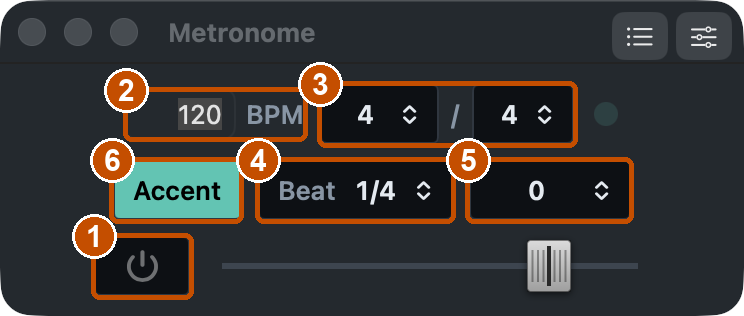
- The sound button
- BPM
- The meter
- Beat (the note it clicks on)
- Count-In
- Accent
| Part | What it does |
|---|---|
| Sound | Whether it makes a sound. It is silent when loaded. Turned on, it starts at the next downbeat. |
| BPM, meter | The app’s tempo and meter. Changing them here changes them for the whole app. |
| Beat | The note length it clicks on. At Off, only the downbeat lights, and it sounds only while Accent is on. |
| Count-In | The number of count-in bars (the same as in Settings). The choices marked “only” click the count-in bars and stop. |
| Accent | Stresses the downbeat. |
The metronome counts beats at the app’s tempo even when nothing is playing. While a MIDI file plays, it follows the song’s bars.