Reference Chapter 1
The Screen
The main screen (the mixer) and the windows that open from it.
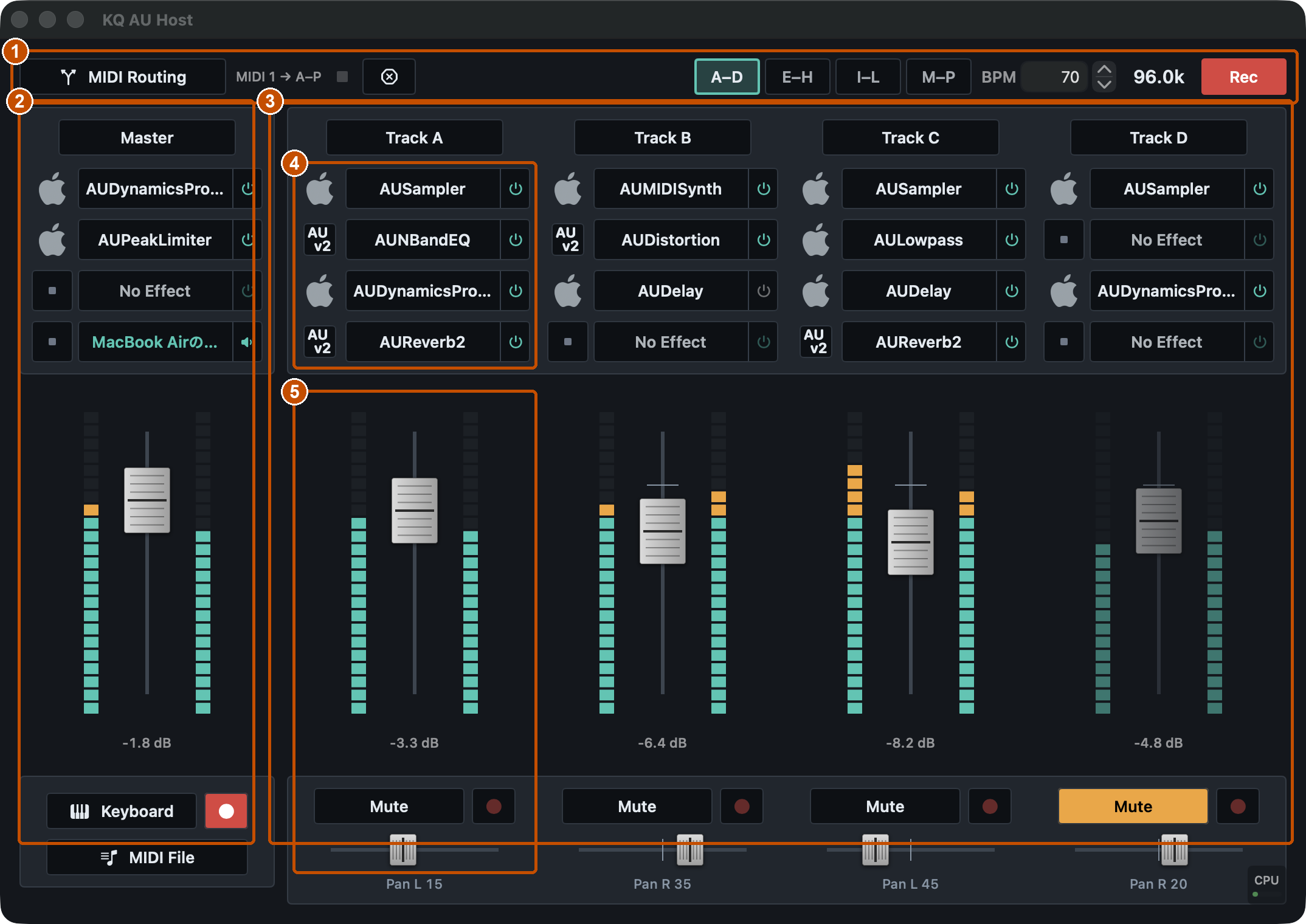
- The top bar
- The Master strip
- The track strips (four at a time)
- Slots (one instrument, three effects)
- Fader, pan, mute and record button
The top bar
| Part | What it does |
|---|---|
| MIDI Routing | Opens the MIDI Routing window (⇧⌘R). Next to it, a summary of where the lanes go (for example MIDI 1 → A–P). |
| MIDI light | Lights when MIDI arrives. |
| All notes off | Stops stuck notes (⌘.). |
| A–D, E–H, I–L, M–P | Switches the group of tracks shown. Where there is no room, as on iPhone, they move into the … menu. |
| BPM | The tempo sent to plug-ins. While a MIDI file is open, it also changes the playback speed (Chapter 5). |
| Audio status | Shows Audio stopped when the audio has stopped: press it to restart. It can also show the audio load (chosen in Settings). |
| … iPhone and iPad only | The menu for sessions, settings, MIDI files, zoom and windows. On the Mac, the same items are in the menu bar. |
| Rec | Starts and stops recording (⌘R; Chapter 6). |
Strips
Master is at the left end, with the tracks to its right, four at a time. There are 16 tracks, A to P.
| Part | What it does |
|---|---|
| Name | The track’s name. Press it to rename the track (on the Mac, also Rename… on right-click). Drag it onto another track to swap or duplicate tracks (Chapter 3). |
| Instrument slot | Holds the track’s instrument. An audio input can go there instead. Master has none. |
| Effect slots | Hold up to three effects (FX 1 to FX 3). The sound goes through them from top to bottom. |
| Output slot | Master only: where the sound goes out, and the output mute (the sound button). |
| Fader, pan, mute | Volume, left-right position and silence (Chapter 3). |
| ● (record button) | Chooses whether the next recording records this strip (Chapter 6). |
| Keyboard, MIDI File | Below Master: open the keyboard window and the MIDI File window. |
The iPhone and iPad screen
- iPad
- The whole mixer, as on the Mac. In portrait, the strips grow taller and the slot names turn 90°. When the app is narrow, as in Split View, it takes the iPhone layout.
- iPhone, portrait
- One strip at a time. Swipe left and right, or use the tabs at the top (Master and the group’s four tracks).
- iPhone, landscape
- Master and the group’s four tracks side by side. The top bar switches between Faders and Plug-ins (both appear when there is room).
On a small screen, mute and pan move beside the fader; on a smaller one, the fader becomes a knob (drag up and down).
Windows
| Window | How to open | Contents |
|---|---|---|
| Keyboard | Keyboard below Master, ⌘K | The on-screen keyboard (Chapter 4) |
| MIDI File | MIDI File below Master, ⇧⌘M | MIDI file playback (Chapter 5) |
| MIDI Routing | MIDI Routing in the top bar, ⇧⌘R | MIDI lanes (Chapter 4) |
| Snapshot Pad | Mac: the Window menu. iPhone and iPad: the … menu. Also Show Snapshot Pad in Settings | Snapshots (Chapter 7) |
| Plug-in view | Press the plug-in’s name in its slot | The plug-in’s view and parameters (Chapter 2) |
| Settings | Mac: KQ AU Host > Settings… (⌘,). iPhone and iPad: the … menu | Chapter 9 |
The open windows and their positions are saved with the session. On the Mac, ⌘1 brings the mixer window to the front.
Windows on iPhone and iPad iPhone and iPad only
Windows float over the mixer, and the mixer below stays usable.
- Drag the title bar to move a window. Double-tap the title to maximize it.
- Drag the lower-right corner to resize it (the size is remembered).
Zoom
The whole screen can be zoomed from 85% to 120%. It changes the mixer and the contents of the app’s windows (not plug-in views).
- Mac
- ⌘+ (zoom in), ⌘- (zoom out), ⌘0 (actual size). Also Zoom under Display in Settings.
- iPhone and iPad
- Zoom In and Zoom Out in the … menu.
Tracks in the free version Mac only
The free version distributed outside the App Store has four tracks, A to D. The App Store version has all 16.