Reference Chapter 4
MIDI
MIDI lanes, MIDI effects, the keyboard window and connecting MIDI devices.
MIDI lanes
MIDI reaches the tracks through 20 lanes (MIDI 1 to MIDI 20). The MIDI Routing window (⇧⌘R) shows five lanes at a time; switch with 1–5, 6–10, 11–15 and 16–20 at the right of the title bar (on a narrow iPhone or iPad screen, the menu of a single button).
In a new session, lane 1 takes every MIDI device (except the app’s virtual port) and the MIDI file, and sends them to tracks A to P. Lanes 2 to 20 are empty.
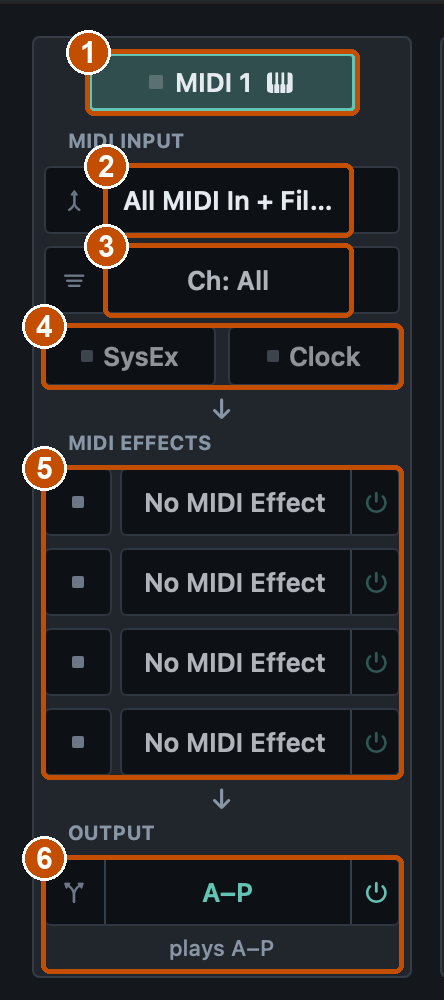
- The lane’s name and MIDI light
- MIDI Input
- The channel filter (Ch:)
- SysEx, Clock
- MIDI Effects (four)
- Output and its power button
| Part | What it does |
|---|---|
| Name | Press it to have the keys of the keyboard window play this lane (it gets a keyboard mark). Touch and hold it (or right-click on the Mac) to rename it. A lane with no input is shown dimmer. Drag it to swap or duplicate the lane with another (see below). |
| MIDI Input | What the lane takes. Choose as many as you like; they are merged in time order (see the table below). |
| Channel filter | Which of the 16 MIDI channels pass: All Channels, No Channels, or one by one. |
| SysEx | Passes System Exclusive (F0 … F7). |
| Clock | Passes timing clock, start, continue, stop, song position and the like. Active sensing and reset never pass. |
| MIDI Effects | Hold up to four MIDI effects (Chapter 2). |
| Output | The tracks and other lanes it sends to. Choose as many as you like; each gets the same. Destinations that would make a loop cannot be chosen. The power button stops sending while keeping the destinations chosen. |
What MIDI Input can take
| Item | Contents |
|---|---|
| All MIDI In | Every MIDI device connected (also those connected later). Not the app’s virtual port. |
| Device names | MIDI devices one by one. |
| KQ AU Host | The app’s virtual MIDI port. Other apps can send MIDI to it. |
| MIDI File: All Tracks | Every track of the MIDI file. |
| MIDI File: Track 1 … | The MIDI file’s tracks one by one (while a file is open). |
| Other lanes | Takes another lane’s output. |
| Clear All Inputs | Removes everything chosen. |
The keys of the keyboard window are not chosen here: the lane is chosen in the keyboard window.
Swapping and duplicating lanes
Drag a lane’s name and drop it on another lane’s panel: a menu appears with Swap, Duplicate and Cancel. On the Mac, Swap With and Duplicate To on the name’s right-click menu do the same.
- Swap: the MIDI effects, inputs, channel filter, SysEx and Clock, and outputs move, with their power buttons. Unlike tracks, the lane’s name moves too. The lane played by the keyboard window, the sends from other lanes and the snapshots’ values follow. After a swap, all sounding notes stop.
- Duplicate: copies the contents and the name; the copy has no output. Lanes that send to the original also send to the copy (those that sent to the destination before no longer do). Snapshot values are not copied. The copied MIDI effects start powered off (bypassed).
The summary in the top bar
Next to MIDI Routing in the top bar is a summary of where the lanes go (for example MIDI 1 → A–P).
MIDI effects
Plug-ins that rework MIDI (MIDI Processor Audio Units), such as arpeggiators and chord generators. They go into the lane’s MIDI Effects slots, and the MIDI goes through them from the top slot down. When none are installed, the menu says No MIDI effect Audio Units installed.
The keyboard window
Open it with Keyboard below Master, or ⌘K.
| Part | What it does |
|---|---|
| Keys | Press them to play. Drag for a glissando. On iPhone and iPad, play chords with as many fingers as you like. |
| Octave | Moves the keys up or down an octave at a time. |
| Velocity | How hard the notes are played. |
| Input to | The lane the keys and the computer keyboard play into. |
| MIDI channel | The MIDI channel the keys send on. |
| Warning icon | Appears when the lane’s channel filter stops the channel, or the lane has no destination (The keyboard is not heard. Check the lane in MIDI Routing.). |
Playing with the computer keyboard Mac only
| Keys | What they do |
|---|---|
| A S D F G H J K L ; | White keys |
| W E T Y U O P | Black keys |
| Z / X | Octave down / up |
| Space | Play and stop the MIDI file |
They work while the app’s window is in front. When a plug-in’s view is in front, the keys go to the plug-in.
Connecting MIDI devices
- USB MIDI devices appear in the MIDI Input list when connected. The devices connected are also listed under MIDI Inputs in Settings.
- On the Mac, Bluetooth MIDI devices are connected in macOS’s Audio MIDI Setup.
Bluetooth MIDI iPhone and iPad only
The Bluetooth button in the title bar of the MIDI Routing window opens the system’s screen.
| Item | What it does |
|---|---|
| Connect to… | Finds and connects Bluetooth MIDI devices. |
| Wait for Connection… | Shows this iPhone or iPad as a Bluetooth MIDI device, for a Mac or the like to connect to. |
Devices connected are chosen in MIDI Input like other MIDI devices (they are also in All MIDI In).
All notes off
When notes get stuck, press the all-notes-off button in the top bar (on the Mac, also ⌘.).