Reference Chapter 2
Plug-ins
How to work with the Audio Unit plug-ins that go into slots (instruments, effects and MIDI effects).
Kinds of slots
| Slot | Where | What it takes |
|---|---|---|
| Instrument slot | The top of each track | An instrument; or an audio input (Audio Input), or another instrument’s extra output (Plug-in Outputs) |
| Effect slots | Three on each track and on Master | Effects |
| MIDI effect slots | Four on each MIDI lane | MIDI effects (MIDI Processor Audio Units, such as arpeggiators) |
The Mac takes AUv3 and AUv2 plug-ins; iPhone and iPad take AUv3 plug-ins.
The plug-in menu
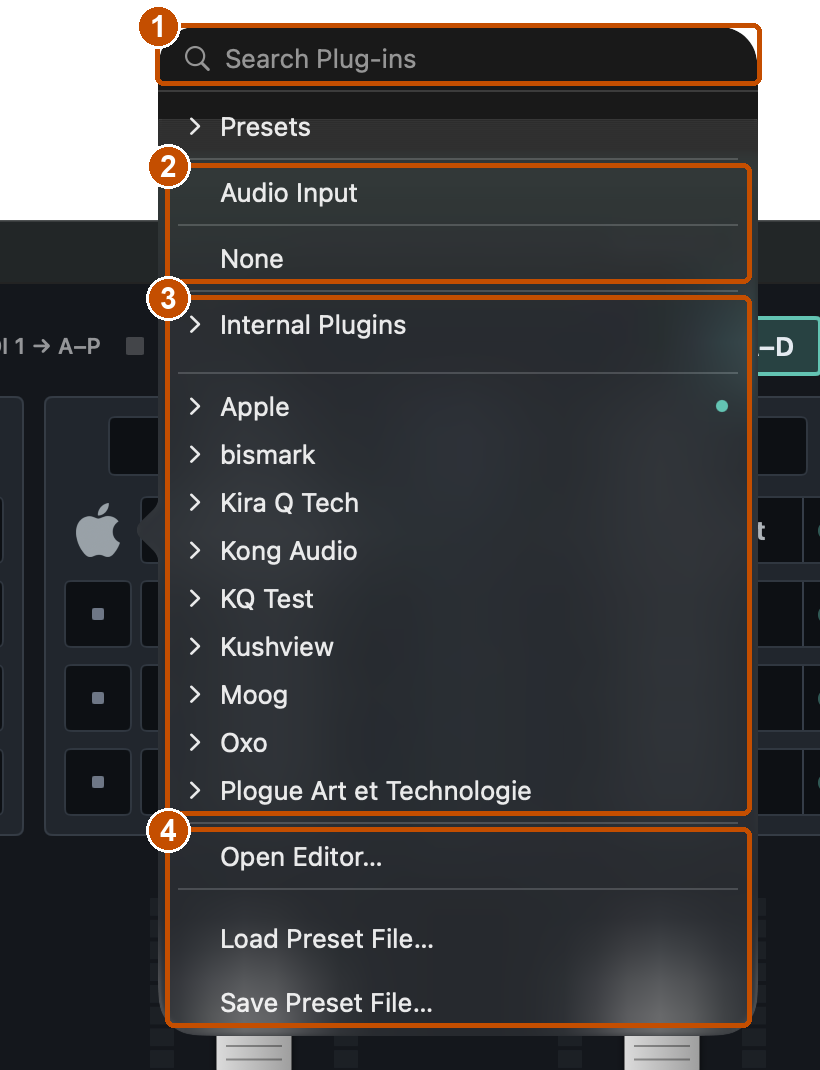
- Search Plug-ins
- Audio Input and None
- The list by manufacturer (press to open)
- Open Editor… and presets
| To open it | |
|---|---|
| An empty slot | Press the slot. |
| A slot with a plug-in | Mac: click the slot’s icon. iPhone and iPad: touch and hold the icon or the slot’s name. |
- Plug-ins are grouped by manufacturer. The app’s own plug-ins (Internal Plugins: the metronome) are at the top of the instruments.
- Type part of a name in Search Plug-ins to show only the matching ones.
- Choose None to empty the slot.
Power and bypass
The slot’s power button stops the plug-in. It switches at once, and the sound joins up smoothly (about 40 ms).
- Effects: off, the sound skips the effect (bypass).
- Instruments: off, the sound goes silent.
- While off, the plug-in does no processing and uses no CPU.
The plug-in’s view
Press the plug-in’s name in its slot to open its view.
- When a plug-in has both, you can switch between its own view and the list of its parameters (Show Parameters and Show Plug-in View in the title bar). A plug-in with neither shows No Parameters.
Apple’s plug-ins
The Mac, iPhone and iPad all come with Apple’s Audio Unit plug-ins. They are under Apple in the plug-in menu, with nothing to install.
| Kind | On the Mac and on iPhone and iPad | Mac only |
|---|---|---|
| Instruments | AUMIDISynth (a GM instrument that plays SoundFonts), AUSampler (a sampler), AUAudioFilePlayer (plays audio files) | DLSMusicDevice (with GM sounds built in), AUSpeechSynthesis (reads text aloud), AUNetReceive |
| Effects | AUDelay and AUSampleDelay (delay), AUReverb2 (reverb), AUDistortion (distortion), AUDynamicsProcessor (compressor), AUPeakLimiter (limiter), AUNBandEQ and AUParametricEQ (EQ), AUPitch and AUNewPitch (pitch), AUSoundIsolation (picks out voices), and low-pass, high-pass, band-pass, low-shelf and high-shelf filters | AUMatrixReverb, AUGraphicEQ, AUMultibandCompressor, AUFilter, AURogerBeep, AUNetSend and others |
| iPhone and iPad only: AUiPodEQ | ||
The filters have different names: AULowpass, AUHipass and AUBandpass on the Mac; AULowPassFilter, AUHighPassFilter and AUBandpassFilter on iPhone and iPad (the shelves are AULowShelfFilter and AUHighShelfFilter on both).
Without a sound file (a SoundFont or the like), AUMIDISynth and AUSampler play a plain sine wave. The one that plays GM sounds as it is, is DLSMusicDevice on the Mac.
Which ones are there may change with the OS version.
- Mac
- Apple’s plug-ins show their own views.
- iPhone and iPad
- Many of Apple’s plug-ins have no view, so the app provides one (sampler, MIDI synth, EQ, delay, reverb, distortion, filters and so on). It also lets you choose built-in presets, such as the reverb’s room type.
Loading sound files
- Mac
-
DLSMusicDevice: choose the sound bank in Sound Bank: in its view (at first, the GM sounds built into the Mac).
AUSampler: load with Import Instrument from DLS File… or Import Instrument from EXS File… in its view.
You can also drop a SoundFont file onto the views of DLSMusicDevice and AUSampler.
AUMIDISynth: on the Mac it has no view of its own, only the parameter list, and no SoundFont can be chosen. - iPhone and iPad
- Choose a SoundFont (.sf2) or DLS (.dls) file with Choose Sound… in the view of AUMIDISynth or AUSampler. If the file cannot be found, Sound not found appears and the built-in sound (a sine wave) plays.
Presets
Click the slot’s icon on the Mac, or tap it on iPhone and iPad, to choose presets (on iPhone and iPad, also Presets in the plug-in menu).
| Item | What it does |
|---|---|
| Factory presets | The presets that come with the plug-in. |
| User presets | Presets you saved. Save with Save as User Preset…, remove with Delete User Preset. They are kept by the plug-in. |
| Open and save preset files Mac only | Read and write .aupreset files. Dragging an .aupreset file onto a slot or a plug-in’s view also loads it. |
Swapping and duplicating slots
Drag a slot and drop it on another slot: a menu appears.
- Onto a slot with a plug-in: Swap, Duplicate, Cancel
- Onto an empty slot: Move, Duplicate, Cancel
Slots move only among slots of the same kind (instruments among instruments, effects among the tracks’ and Master’s effects, MIDI effects among lanes). A swap moves the running plug-ins as they are. A duplicate starts with its plug-in powered off (bypassed). On the Mac, Swap With and Duplicate To on a slot’s right-click menu do the same.
- Mac
- Click and move to drag.
- iPhone and iPad
- Put your finger down and move right away to drag. If you wait without moving, a menu appears; moving from there drags. Hold a dragged slot over a group button in the top bar (A–D …) to switch the tracks shown.
Slots cannot be moved while recording, nor instrument slots holding an audio input.
Sidechains
Effects with two or more inputs (vocoders, ducking compressors and the like) can take another slot’s sound on their second input. In the sending effect slot’s menu, choose the destination under Sidechain.
- That slot passes its sound on unchanged and also sends it to the destination. Its power button turns the sending on and off.
- Only slots processed before the destination can be chosen (earlier slots of the same track, other tracks, and for Master’s effects, any track).
Extra outputs of instruments (Plug-in Outputs)
An instrument with two or more outputs (a drum instrument, for example) can play its second and later outputs on other tracks. Choose them under Plug-in Outputs in that track’s instrument slot menu. They go through that track’s effects and fader.
When a plug-in stops working
| Shown | Meaning and fix |
|---|---|
| Not responding | The plug-in is not answering. Wait a moment. |
| Stopped working | The plug-in stopped. Press the slot and choose Reload: it comes back as it was last saved. |
| Not available | The plug-in is not installed or could not load. Its settings are kept: install it again and load it to bring it back. |
| Some plug-ins are taking a while to load. | Appears while a session opens. Skip goes on without waiting for that plug-in. |